> ## Documentation Index
> Fetch the complete documentation index at: https://docs.kynesys.xyz/llms.txt
> Use this file to discover all available pages before exploring further.
# Authentication
> To get started with the Demos sdk, you need to create master seed for your wallet. The master seed is a 12 or 24 word mnemonic that can be used to rec...
# Authentication
To get started with the Demos sdk, you need to create master seed for your wallet. The master seed is a 12 or 24 word mnemonic that can be used to recover your keypairs.
```typescript theme={null}
import { Demos } from "@kynesyslabs/demosdk/websdk"
const demos = new Demos()
const mnemonic = demos.newMnemonic()
console.log("master seed:", mnemonic)
```
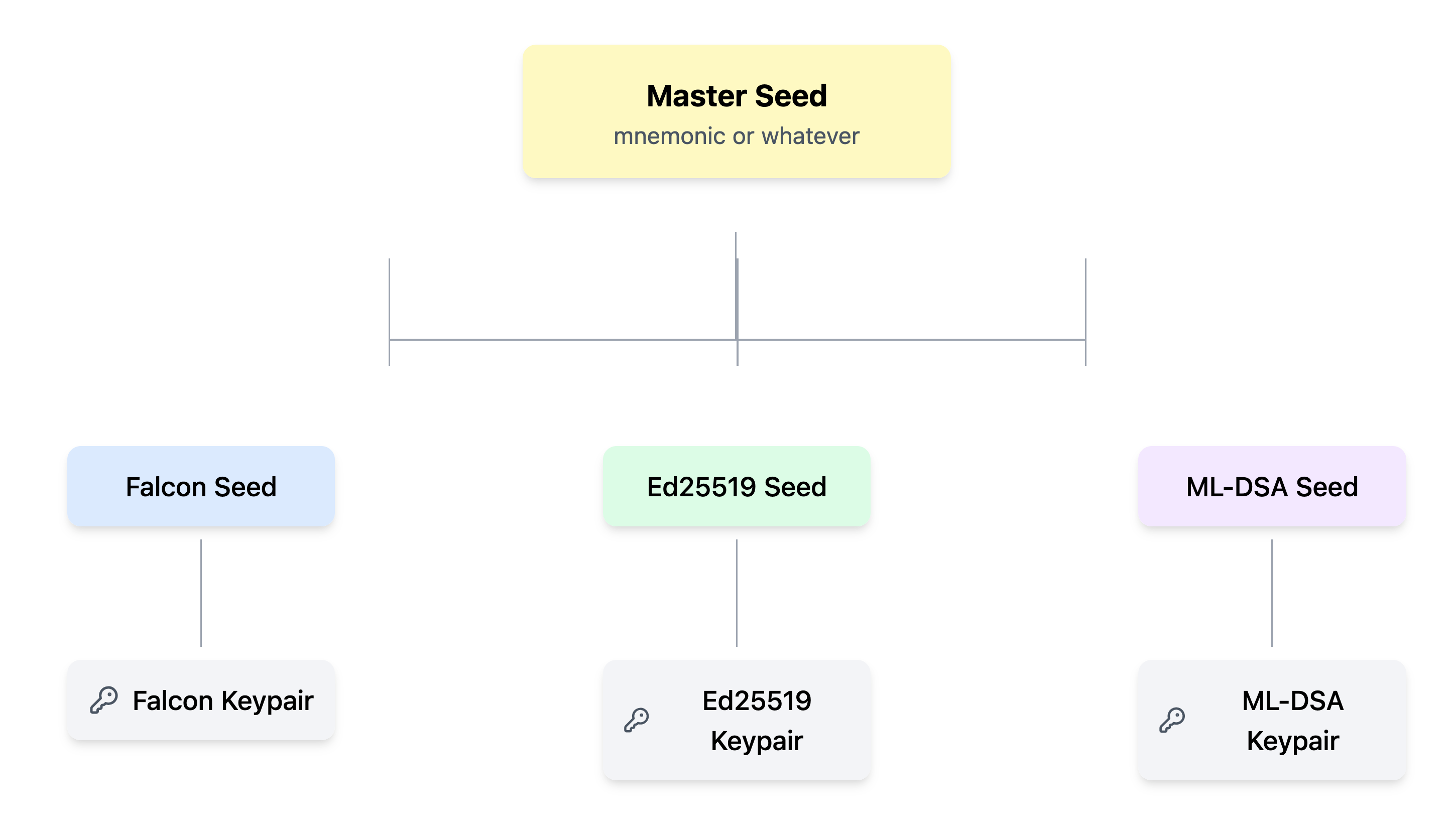
The master seed can be used to generate keypairs for all the supported signing algorithms. For example, Ed25519, Falcon and ML-DSA.
You can now connect your master seed and select the signing algorithm to work with.
```typescript theme={null}
const publicKey = await demos.connectWallet(mnemonic, {
algorithm: "ed25519",
})
console.log("public key: ", publicKey)
```
The `demos.connectWallet` method accepts either a mnemonic or a 128 byte seed buffer.
If you provide any other buffer or string, it will be hashed using SHA-512 to get a 128 byte seed buffer which will be used as the master seed.
The `demos.connectWallet` method accepts two fields for the `options` parameter
1. `algorithm: string` - The algorithm to generate keypairs for, and use for signing transactions and transmissions. Available options are `["ed25519", "falcon", "ml-dsa"]`. Defaults to `ed25519`.
2. `dual_sign: boolean` - Only applicable when using a PQC algorithm in the previous option. If true, includes both the PQC signature and ed25519 signature in signed transactions. Defaults to `false`.
To use only the PQC signature in transactions, please check out [PQC identities](../../post-quantum-cryptography.md#pqc-identities).
You can connect to a PQC algorithm as shown.
```typescript theme={null}
const publicKey = await demos.connectWallet(mnemonic, {
algorithm: "falcon",
dual_sign: true
})
console.log("public key: ", publicKey)
```
To get the public key of your connected keypair, you can use the `getAddress` method.
```typescript theme={null}
const publicKey = demos.getAddress()
console.log(`${demos.algorithm} public key: `, publicKey)
```
While you can sign transactions and transmissions with a PQC algorithm, you can only associate a transaction or send funds to an ed25519 address. You can get the ed25519 address of the connected wallet, as shown:
```typescript theme={null}
const ed25519PubKey = await demos.getEd25519Address()
console.log("ed25519 public key:", ed25519PubKey)
```
### What is a master seed?
With the introduction of Quantum-safe algorithms with support for ed25519, a lot of key types need to be generated. To keep this organized, a master seed is used together with a key derivation function to generate deterministic seeds for the various key types. These seeds are then used to generate keypairs.
 ### Accessing your keypairs
You can access the keypairs generated by your master seed by tapping into the `demos.crypto` object. For example, to retrieve your ed25519 keypair:
```typescript theme={null}
const keypair = await demos.crypto.getIdentity("ed25519")
console.log("falcon keypairs:", keypair)
```
To get your unconnected keypairs, you need to generate them first:
```typescript theme={null}
const falconKeys = demos.crypto.generateIdentity("falcon")
console.log("falcon keypair:", falconKeys)
```
### Signing and verifying messages
You can sign messages using your connected keypair as shown:
```typescript theme={null}
const msg = "Hello World!"
// signing message
const signature = await demos.signMessage(msg)
console.log("signature:", signature)
// verifying signatures
const publicKey = await demos.getAddress()
const verified = await demos.verifyMessage(msg, signature.data, publicKey, {
algorithm: signature.type
})
console.log("signature verified:", verified)
```
### Connecting to a RPC node
You can connect to the DEMOS block chain via a RPC node. Here is a list of public DEMOS nodes.
1. [https://node2.demos.sh](https://node2.demos.sh/)
You can connect to a demos RPC node using the sdk as follows:
```typescript theme={null}
import { Demos } from "@kynesyslabs/demosdk/websdk";
const demos = new Demos()
await demos.connect("https://node2.demos.sh")
console.log("connected to rpc:", demos.connected)
```
The `demos.connect` method confirms that the RPC URL provided is online. If the method exits without throwing an error, you are now ready to query the blockchain via NodeCalls.
### Logging out
Once you are done with your instance, you can remove your keypair.
```typescript theme={null}
demos.disconnect()
```
### API Reference
### Accessing your keypairs
You can access the keypairs generated by your master seed by tapping into the `demos.crypto` object. For example, to retrieve your ed25519 keypair:
```typescript theme={null}
const keypair = await demos.crypto.getIdentity("ed25519")
console.log("falcon keypairs:", keypair)
```
To get your unconnected keypairs, you need to generate them first:
```typescript theme={null}
const falconKeys = demos.crypto.generateIdentity("falcon")
console.log("falcon keypair:", falconKeys)
```
### Signing and verifying messages
You can sign messages using your connected keypair as shown:
```typescript theme={null}
const msg = "Hello World!"
// signing message
const signature = await demos.signMessage(msg)
console.log("signature:", signature)
// verifying signatures
const publicKey = await demos.getAddress()
const verified = await demos.verifyMessage(msg, signature.data, publicKey, {
algorithm: signature.type
})
console.log("signature verified:", verified)
```
### Connecting to a RPC node
You can connect to the DEMOS block chain via a RPC node. Here is a list of public DEMOS nodes.
1. [https://node2.demos.sh](https://node2.demos.sh/)
You can connect to a demos RPC node using the sdk as follows:
```typescript theme={null}
import { Demos } from "@kynesyslabs/demosdk/websdk";
const demos = new Demos()
await demos.connect("https://node2.demos.sh")
console.log("connected to rpc:", demos.connected)
```
The `demos.connect` method confirms that the RPC URL provided is online. If the method exits without throwing an error, you are now ready to query the blockchain via NodeCalls.
### Logging out
Once you are done with your instance, you can remove your keypair.
```typescript theme={null}
demos.disconnect()
```
### API Reference